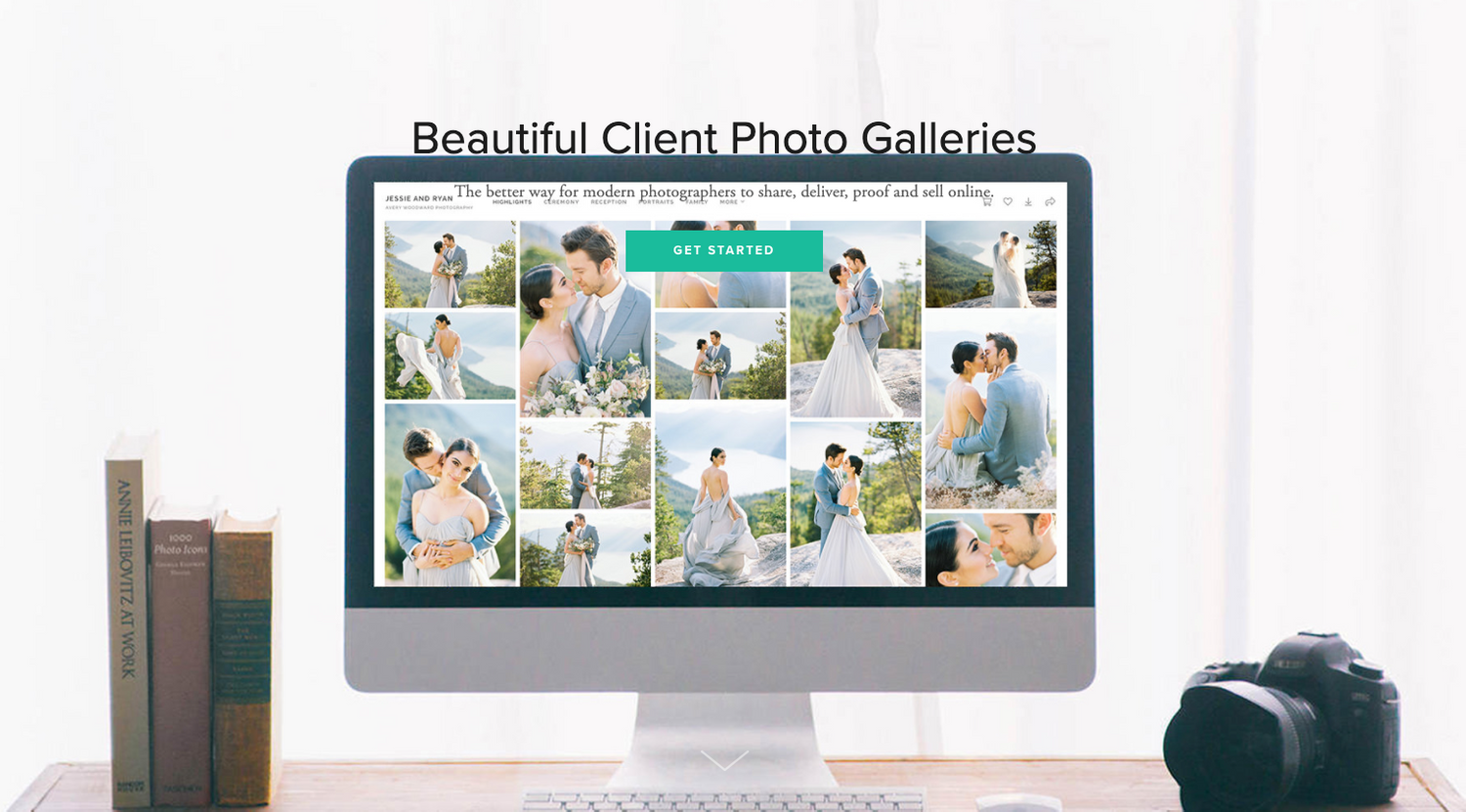
Pixieset is an amazing photo-sharing software I use to send you your photos! It’s super user-friendly and you can even print your images straight from the website!
Please be sure to SAVE YOUR IMAGES somewhere else (i.e. iCloud, Hard Drive, USB, CD) once they’re downloaded. Your images will only be up there from 6 months to a year after your session.
IMPORTANT PRINTING INFORMATION
If you decide to print on your own, PLEASE be sure to download them on your desktop and then send those images to your printer. The software recognizes what type of device is being used to download them. So, by downloading them on your desktop and/or computer, they will be downloaded in the higher resolution which will make for better quality prints.
If you download them on your phone, and then send them to the printer from your phone, they will be in a very low and poor quality and the prints will not turn out as well.
Step 1:
Go to your Pixieset gallery.
You will receive an email with the link and password once your images are ready for viewing or downloads.
Step 2:
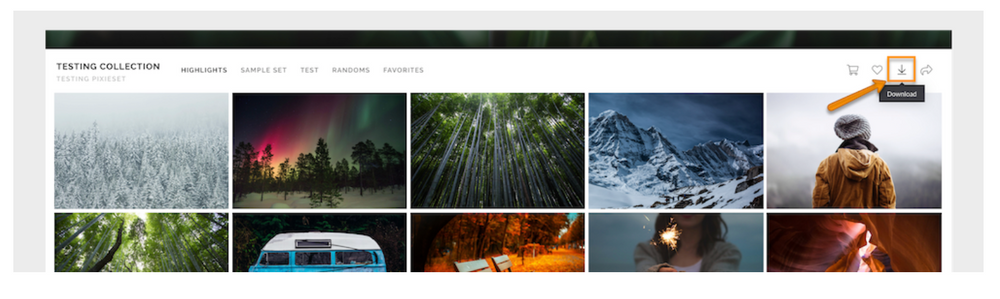
Click on the Download icon. It’s the icon between the Favorite (heart) button and the Share button; it looks like a downward pointing arrow on a rectangle.
Step 3:
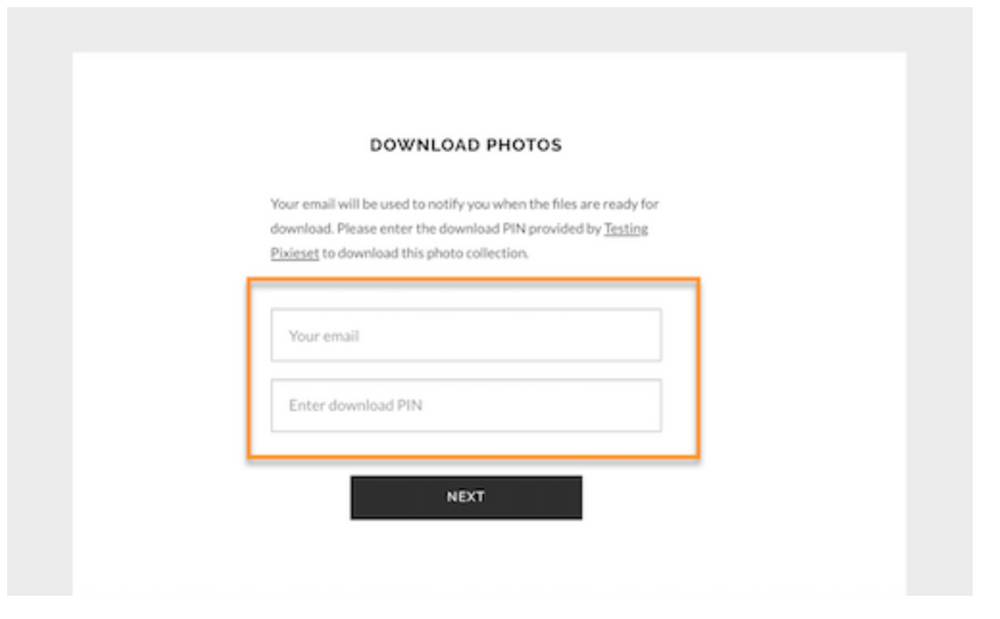
Enter your email address and the 4 digit PIN that was sent to you.
This way you can download the full gallery or individual photos.
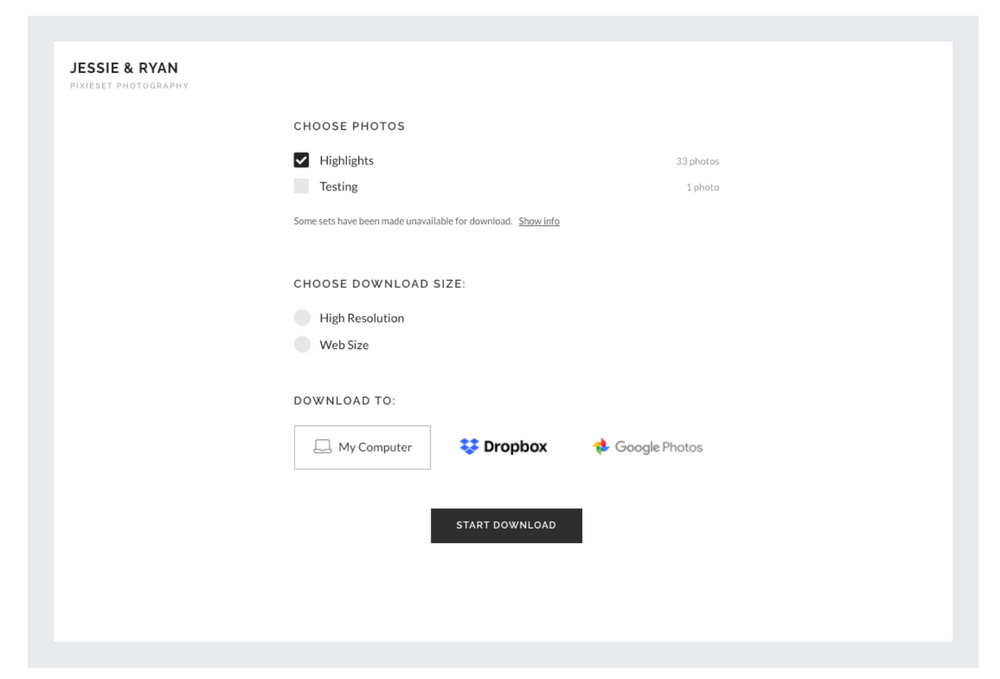
You can also select where you would like the download to be sent when it's ready - to your Computer as a .ZIP file, or directly to your Dropbox or Google Photos account. The email address provided will only be used to notify them when your .ZIP file of images is ready to be Downloaded (in case you do not wish to wait on the Download page for this to be completed). The email you receive will also include the link you will need to access your images, and Download the .ZIP file to your computer. Pixieset does not email you for any other reason.
Step 4:
Choose what size you’d like the images to download in.
The choices are:
Web Size – perfect for sharing on social media! These files usually have a logo on the bottom side.
Or High Resolution – for printing even large files!
Make sure that you order your prints with a semi professional lab, like MPix. But I would be happy to tell you more about the printed products I offer, to get the highest quality prints and wall art. Once you’ve decided which size you’d like, click Download! The next screen will pop up saying that your photos are being fetched and soon another download button will appear.
Step 5:
You will receive the Gallery Download in a .ZIP file format on your computer, which you can unzip/extract to get the .jpg image files inside. If you select Dropbox or Google Photos, the images will be available to view directly from your account.